Share with people
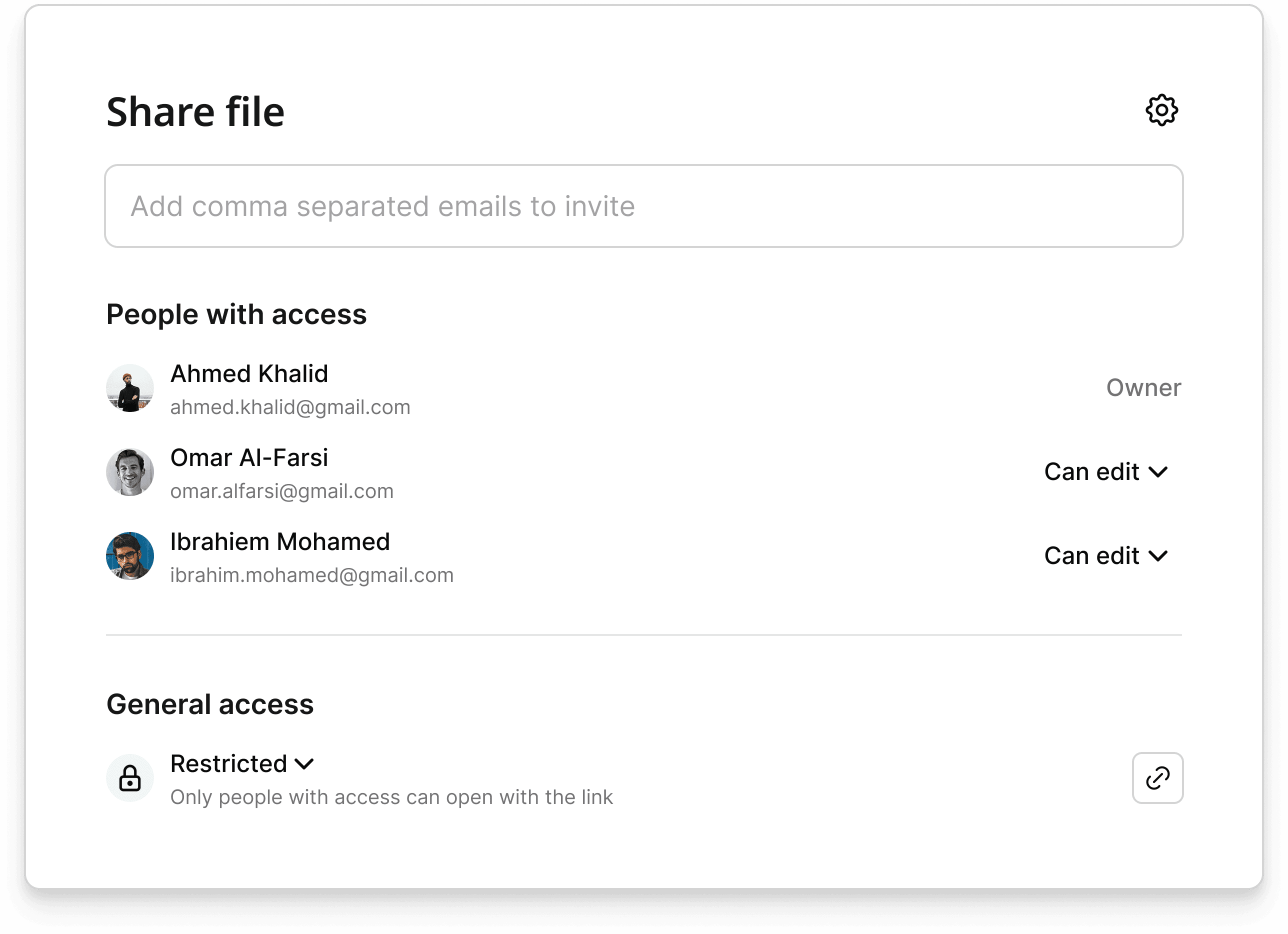
Give workspace members viewer or editor access, with more specific folder permissions when needed.

Keep your work organized, your important files close, and the right people connected. A shared space for everything you’re making.
Get started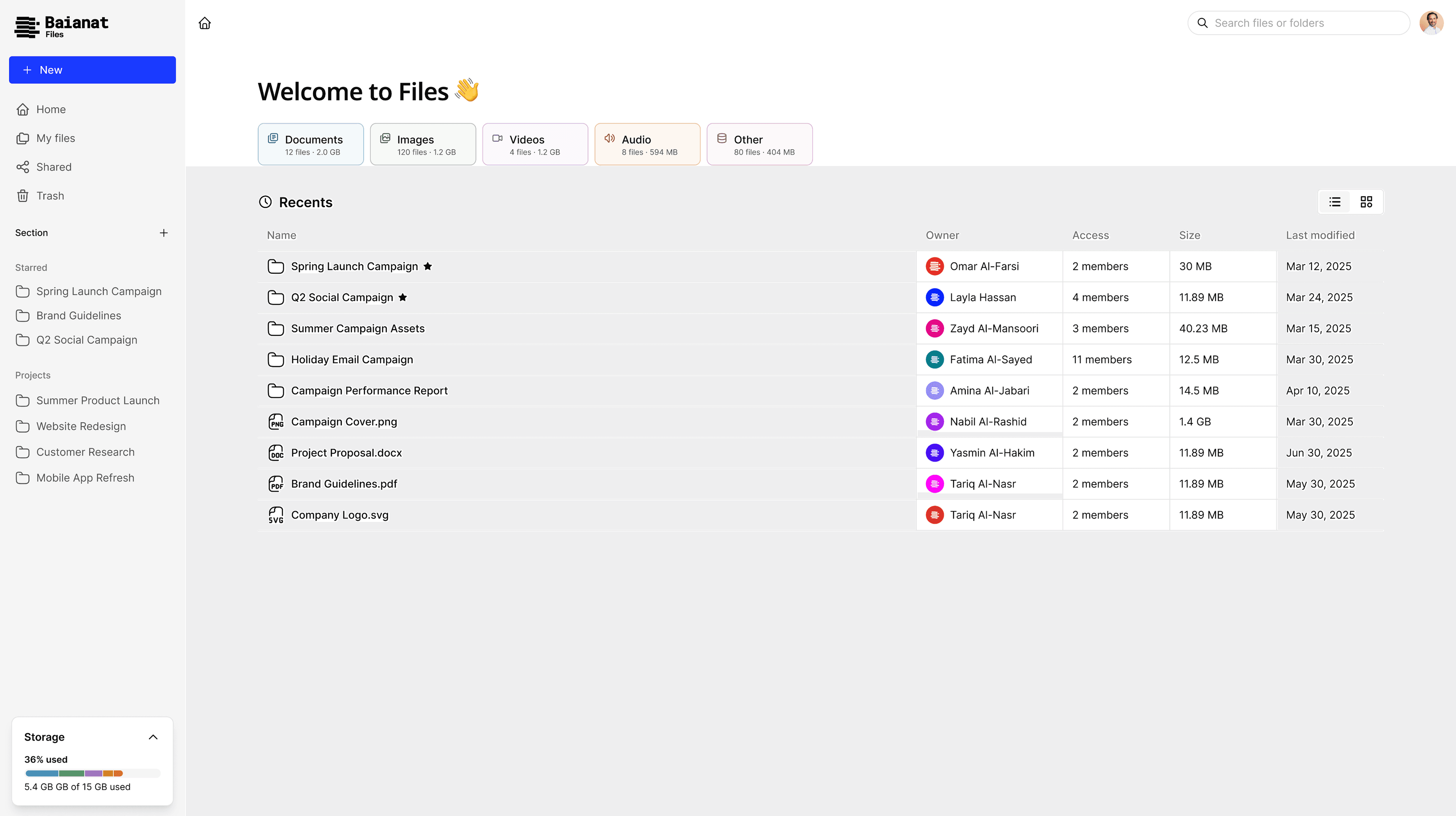
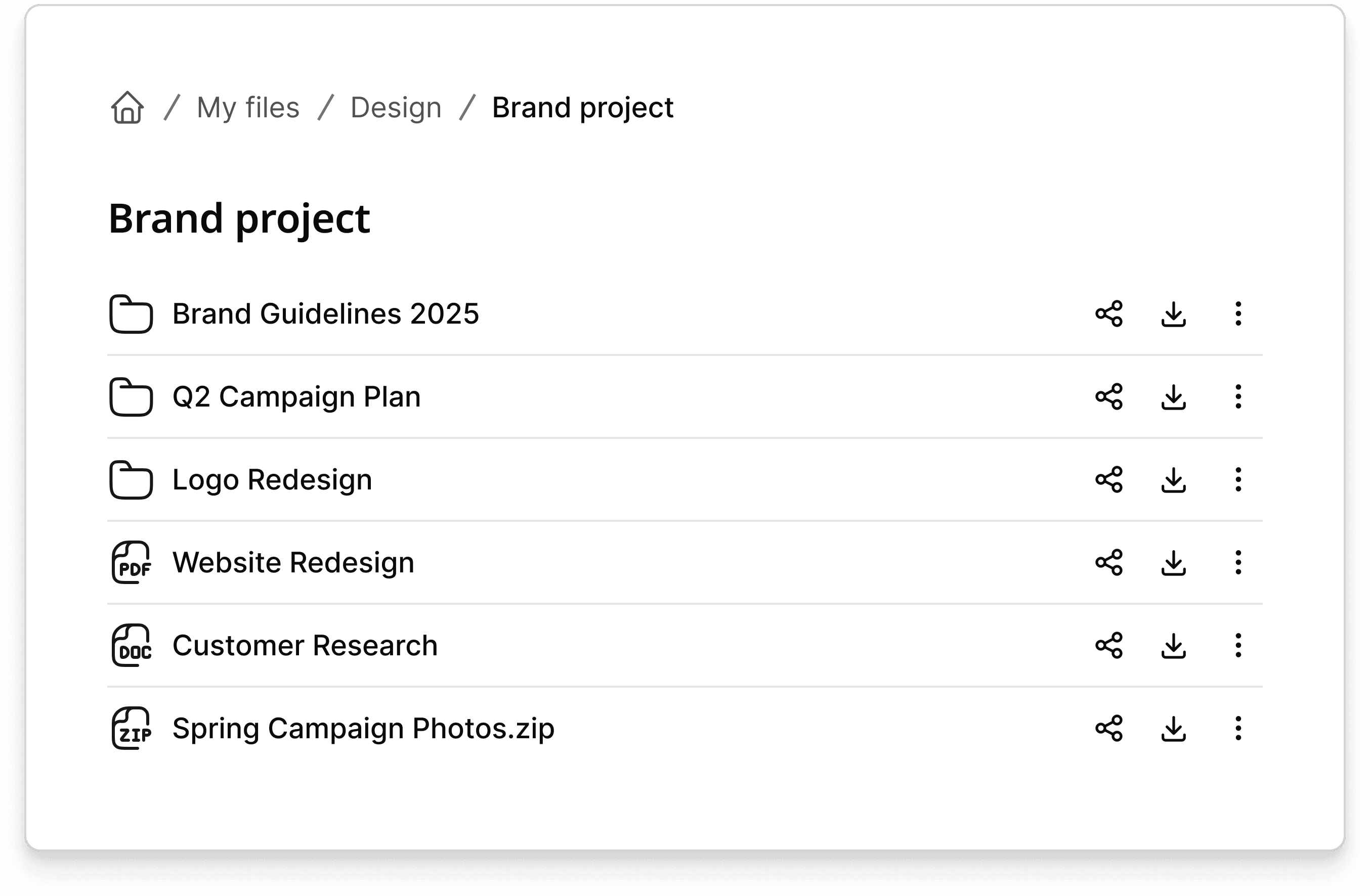
Build a folder structure that matches how your team works. Create nested folders, move and rename items, group related files, and let Files handle duplicate names cleanly.
Bring people into a folder with viewer or editor access. For people outside your workspace, create a link with settings that fit the moment.
Give workspace members viewer or editor access, with more specific folder permissions when needed.
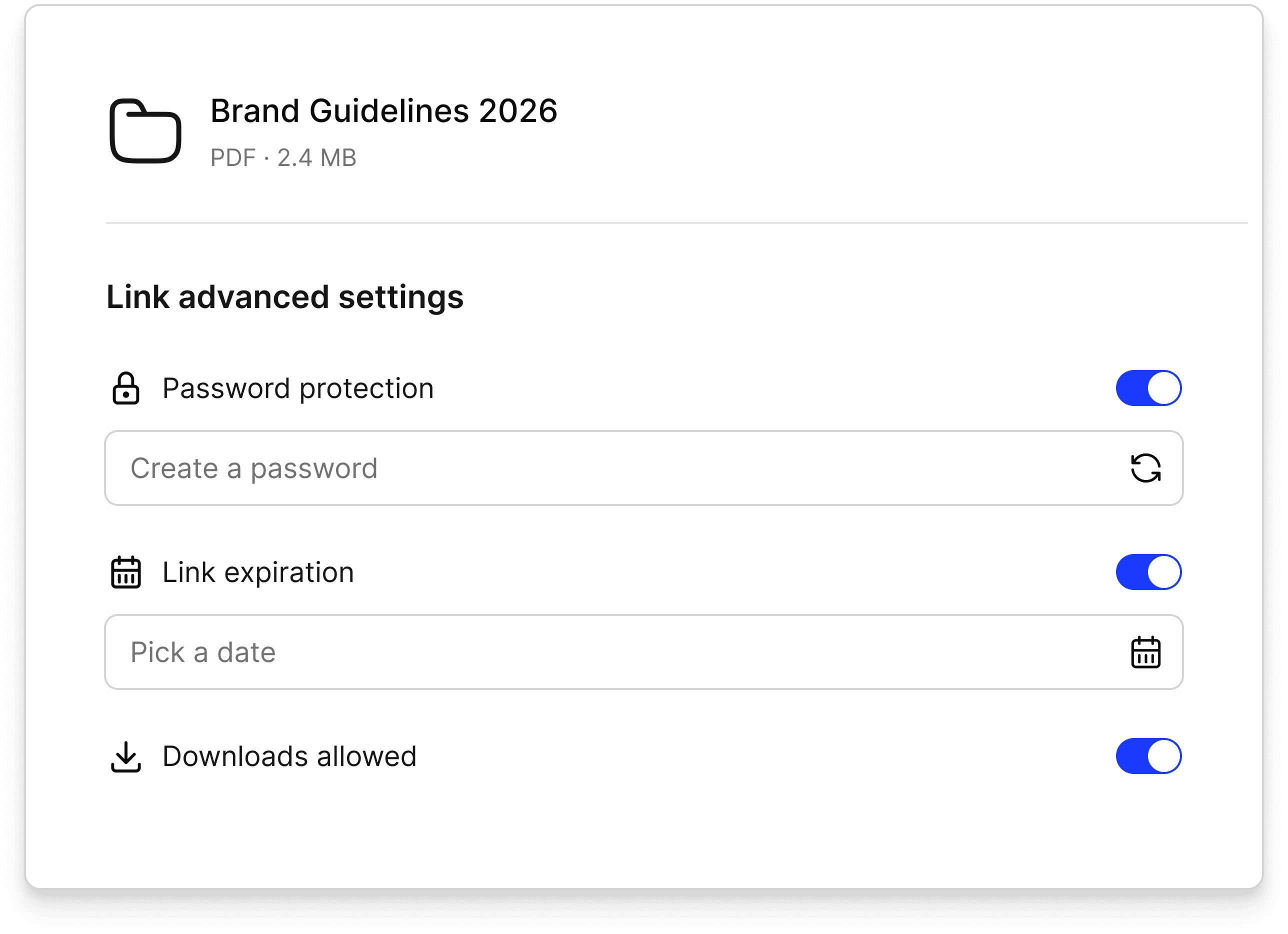
Create multiple links for one item. Add a password, choose an expiration date, set download access, edit settings, or revoke access.
Useful tools for finding, managing, handing over, and recovering work without unnecessary complexity.
Search by filename, type, creation date, owner, or sharing status.
Create multiple files and folders, build nested structures, and move items together.
Retrieve a file, selected items, or a folder with its nested contents.
Star important files and folders, then return to them in one view.
Restore files you moved to Trash before they are permanently removed.
Review updates, moves, sharing changes, and download requests in activity history.
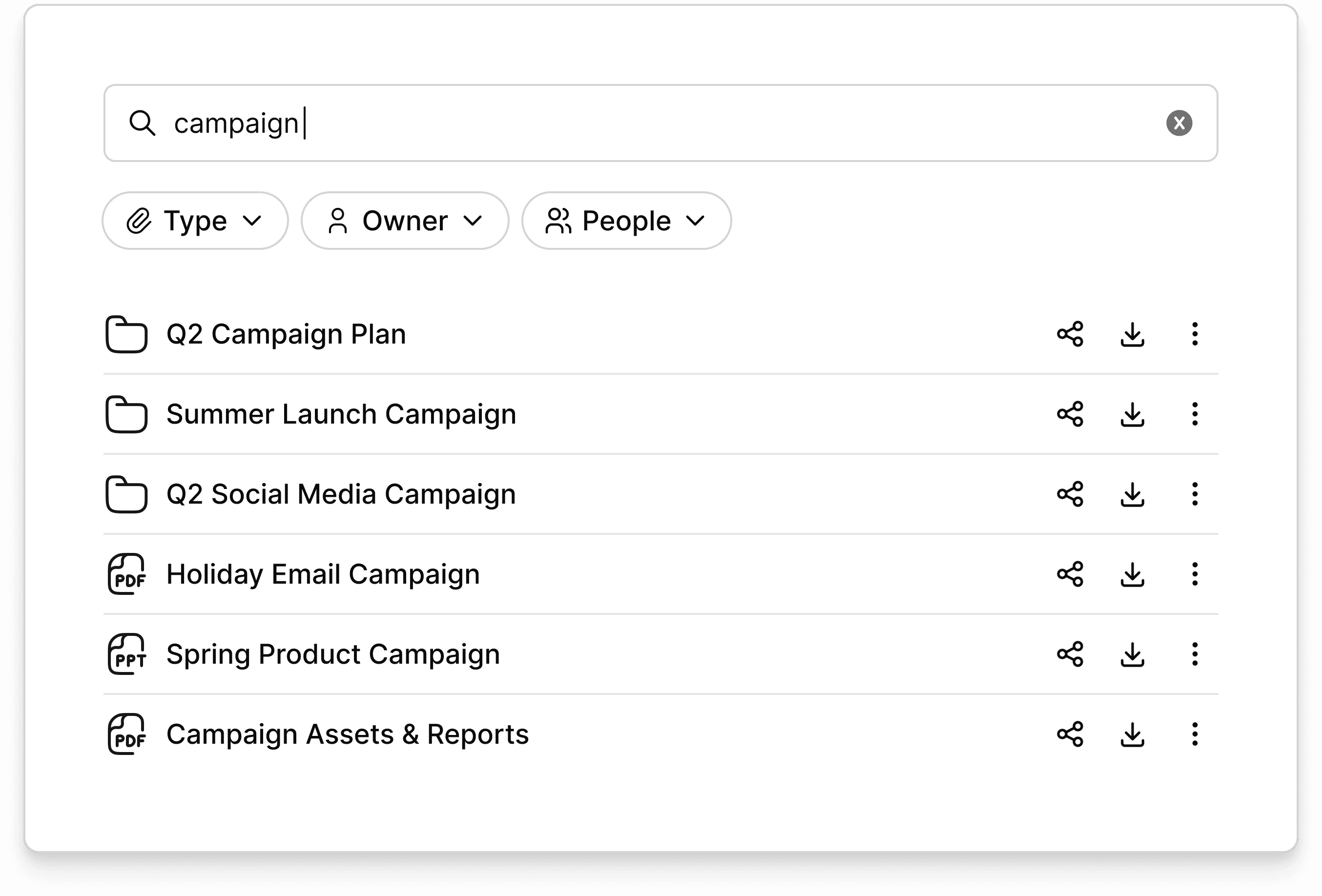
Search names across work you can access, then narrow results by type, creation date, owner, or direct sharing. Star key items and return to files and folders you recently opened, updated, browsed, or downloaded.
See used and available storage, with a breakdown across documents, images, videos, audio, and other files. Trash stays visible and recoverable before cleanup.
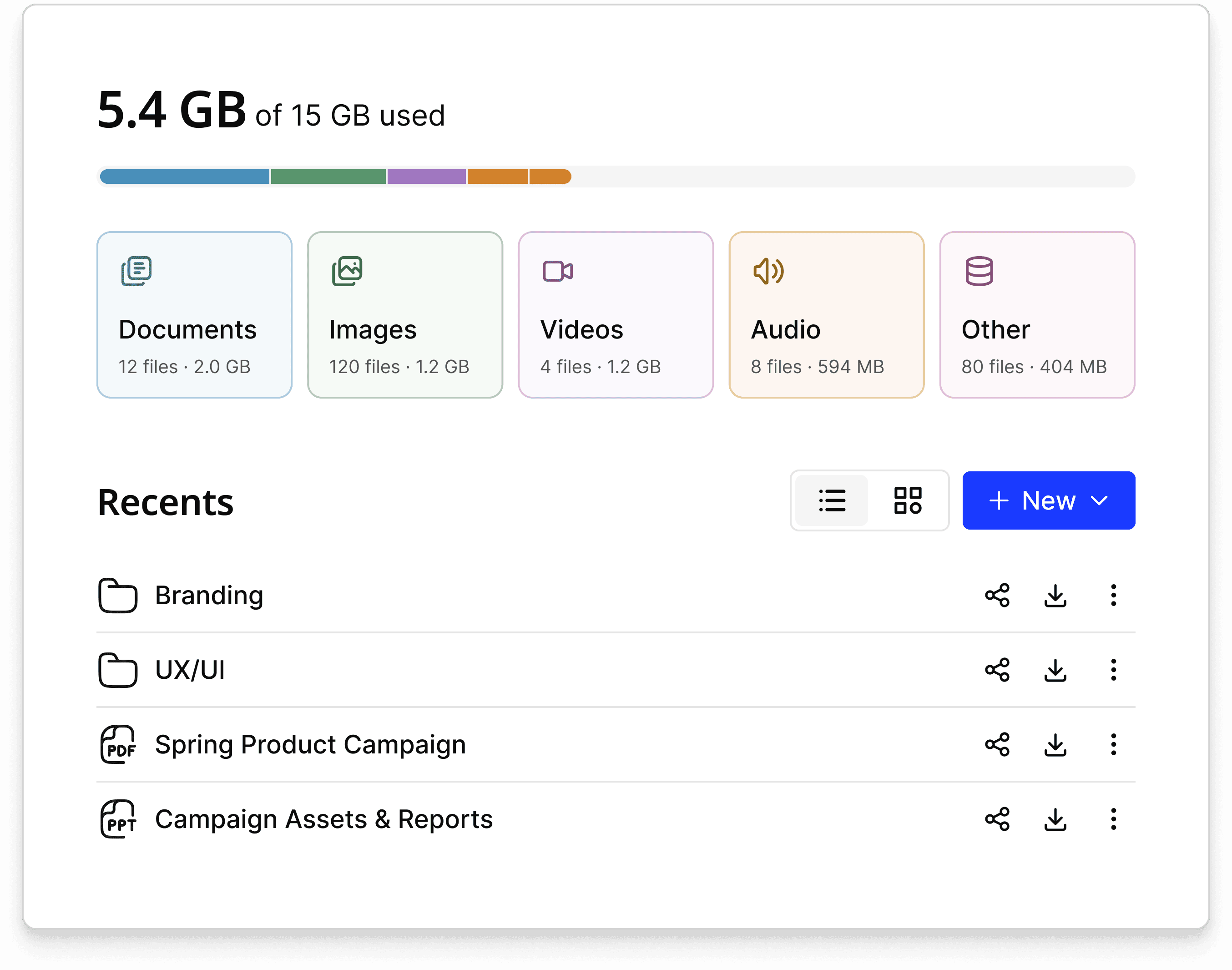
Create folders and subfolders, rename items, and move files into the right project. Star important files and folders to reach them quickly.
Search by file or folder name, then narrow results by type, creation date, owner, or sharing. Search does not look inside document contents.
Yes. Selected files and folders can be shared publicly or through configurable links. Links can have a password, an expiration date, and download settings.
You can give existing users viewer or editor access to files and folders. Folder access can apply to its contents, with more specific permissions where needed.
Yes. You can change a link’s password, expiration date, or download setting, and revoke it to stop future access through that link. Revoking a link does not recall files already obtained.
Your own trashed items appear in Trash, where you can restore them before permanent removal. Items in Trash continue to count toward your storage.